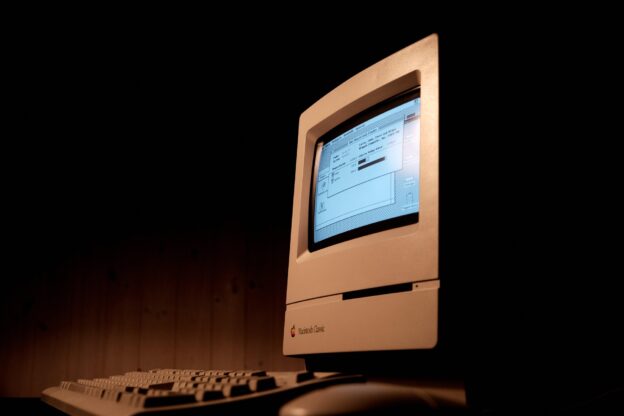
In the early months of the new millennium, I started my first full-time job after graduating from university. Except for the first three days I didn’t, because the IT department hadn’t set up a computer for me. I had the big desk, the natty silver briefcase, the powder-blue Christian Dior workshirt…and nothing to do. By the end of day one, I’d completed all the induction paperwork and research I could manage offline. By day two, I was listening to Radio One and flicking through old car magazines. By day three, I was wishing I’d taken another job entirely, and I certainly wasn’t being productive in any way.
Keyboard warriors
Being without a computer was the death knell of productivity even in 2000. Today, unless you can manage your business affairs through a smartphone, you’re going to need a computer. But what do you do when a computer starts to run out of hard drive space, slow down, overheat or crash? The obvious answer is to replace it, but transferring the contents of your business from one computer to another is often a fraught process, assuming you can even keep an old computer running long enough to safely access its hard drive. If you only have one monitor, how would you display both machines’ output at the same time? If you don’t use cloud storage, how would you port across hundreds of gigabytes worth of files? And if you’re not tech-savvy, how would you navigate disabling digital keys or transferring IMAP email accounts?
It’s far easier to try and extend the lifespan of your existing device and keep an old computer running for as long as possible through proactive maintenance and clever device management. And this is how to do it…
1. Never let the hard drive fill up. If a computer has more than 90 per cent of its hard drive in use, it’ll struggle to run efficiently. There are various things you can do to manage this:
(a) Delete temporary internet files and other unwanted detritus.
(b) Transfer archive files into the cloud, or onto an external flash drive (USB data keys or a portable HDD).
(c) Compress large media files and judiciously prune any smartphone files which are backed up on your computer.
(d) Ask your computer to tidy its own hard drive – often known as a defrag or system cleanup.
2. Examine installed software and delete any unused apps, obsolete programs or other non-essential programs. If you haven’t used them in the last year, you probably won’t need them this year.
3. Ensure the device’s air vents are clean and unobstructed. Over time, dust builds up and clogs vents, leading to overheating. Position the computer in a cool location, away from radiators or sunlight.
4. Run device support tools (such as SupportAssist on Dell laptops) and accept any recommendations. These utilities may help to keep an old computer running more efficiently, for longer.
5. Power the computer down. Debate rages about whether this is better than leaving a computer running, but on older machines, it helps to cool components down and reduce how hard they work.
6. Get your device professionally inspected. A local IT firm might identify emerging issues such as the degradation of individual components. Each computer component has a different lifespan.
7. Replace ailing components. If you use a desktop PC, those IT experts could replace key parts as they wear out. You could even upgrade components yourself with a YouTube tutorial and a steady hand.
8. Don’t use your works computer for anything else. Stream movies on a smart TV, do internet shopping on a Chromebook, play games on a tablet. Keep your device as a work machine only.
9. Install any patches and updates you’re able to. If your operating system is still supported, keep it as up to date as possible. A robust antivirus package is also crucial on more vulnerable older systems.
Help when you need it most
Although G75 Media has provided a wealth of support to small businesses and charities over the last two decades, we’re not IT experts. However, we are experts in content production, journalism and marketing copy. If you need help with any of these services, drop us an email or call us if your computer’s playing up. We can always post content out if you’re going to be offline for a while…